Quick Start Guide
Get up and running with A.X.E.L in minutes. Learn the key features and workflow.
Welcome to A.X.E.L
A.X.E.L is built for tradesmen who want to spend less time on admin and more time on the tools. Whether you're a fencer, landscaper, builder, or any other trade — A.X.E.L handles your leads, quotes, jobs, and invoices in one place.
Your Dashboard
When you log in, you'll see your dashboard. This gives you a snapshot of everything that matters:
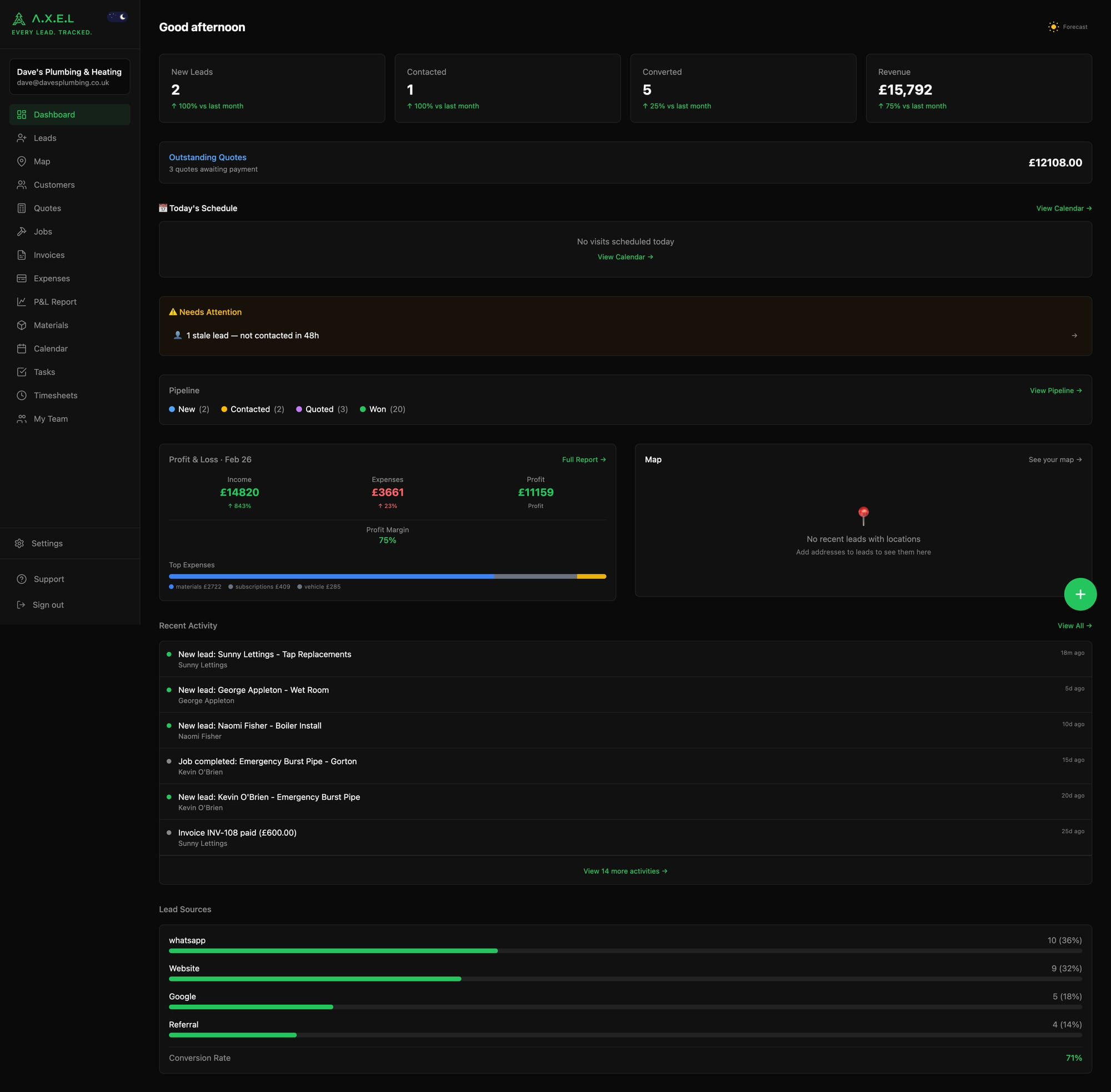
At the top, your stats cards show key numbers at a glance — new leads, contacted, converted, and total revenue, with month-on-month trends:

Below that you'll find:
- Needs Attention — alerts for stale leads and overdue items
- Pipeline — a summary of where your leads sit across each stage
- Profit & Loss — your income, expenses, and profit margin for the month
- Recent Activity — a feed of everything that's happened recently
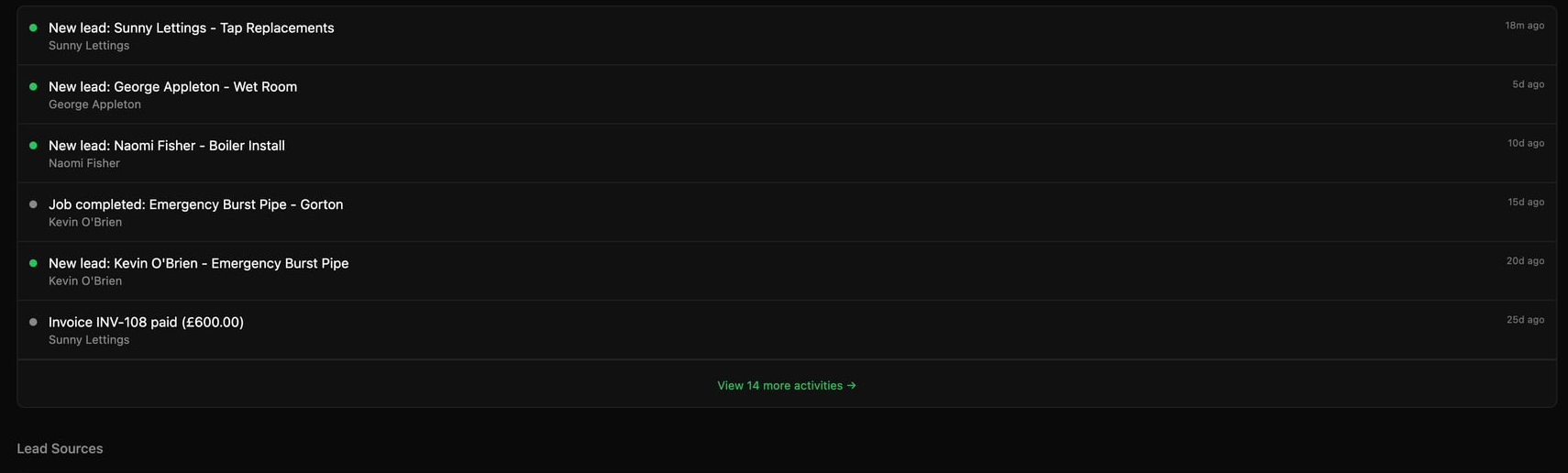
The Quick-Add Button
The green + button in the bottom-right corner is your best friend. Tap it and you'll see four options:
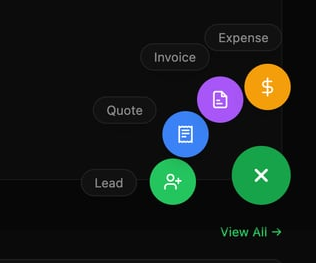
- Lead — add a new enquiry (type it, speak it, or scan a screenshot)
- Quote — create a quote for a customer
- Invoice — bill a customer for completed work
- Expense — log a business expense on the go
You can add things manually, but the real magic is in the voice features. Tap the microphone icon and just speak naturally — A.X.E.L understands what you mean.
The Key Workflow
Everything in A.X.E.L follows a simple flow:
- Lead — someone gets in touch, you capture their details
- Quote — you price up the job and send them a quote
- Job — they accept, it becomes an active job
- Invoice — you finish the work, send the bill
Each step flows naturally into the next. When you create a quote, it auto-links to the lead. When the quote is accepted, it becomes a job. When the job is done, you generate an invoice with one tap.
Tips for Getting Started
- Start by adding your existing leads — even if they're just names and numbers on your phone
- Try the voice features early — they save a massive amount of time on site
- Use the calendar to block out jobs so you can see your week at a glance
- Set up your business details in Settings so your quotes and invoices look professional
Was this article helpful?